
Lesson 09: Mobile Deployment
 Viet-Anh Nguyen
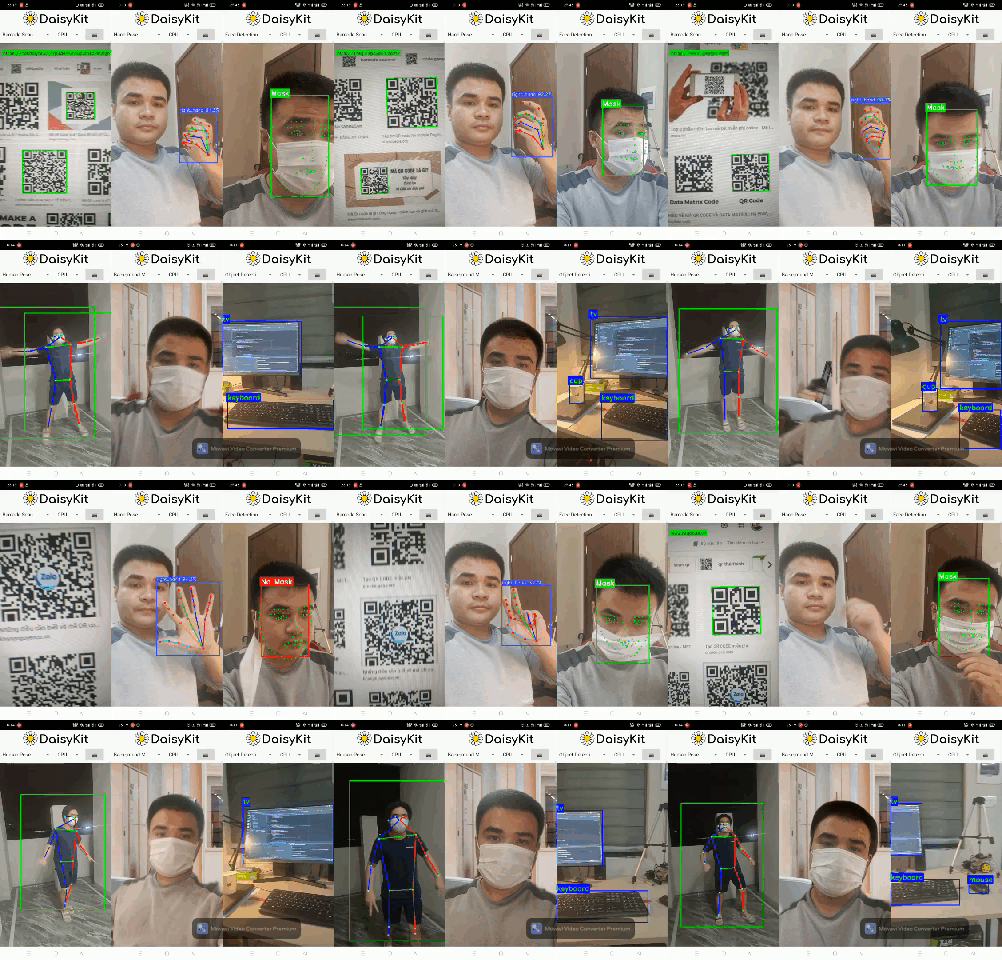
DaisyKit's C++ core compiles to native code for Android and iOS. The same NCNN model weights that run in Python work on mobile without modification. All inference is on-device — no internet required after the initial model download.
Android Deployment
Prerequisites
- Android Studio (Arctic Fox or later)
- Android SDK API 24+ (Android 7.0)
- NDK r21+ (installed via SDK Manager)
- A physical device or emulator with Camera2 API support
Setup
# Clone the Android example repository
git clone --recursive https://github.com/Daisykit-AI/daisykit-android

cd daisykit-android
The repository contains all six DaisyKit flows as separate Android Activities inside one app.
Download Dependencies
Follow the README to download:
- Prebuilt OpenCV Android SDK — place in
app/sdk/OpenCV-android-sdk/ - Prebuilt NCNN library — place in
app/sdk/ncnn-android-vulkan/
Links are provided in the repository README.
Build and Run
- Open
daisykit-android/in Android Studio - Let Gradle sync and download dependencies
- Connect your device (USB debugging enabled)
- Press Run ▶ — Android Studio builds the APK and installs it
The app launches with a menu of all available flows:
- Face Detection & Landmarks
- Human Pose Estimation
- Background Matting
- Hand Pose Detection
- Object Detection
- Barcode Scanner
Integrating a Flow into Your Own App
The core pattern in Java/Kotlin:
// Kotlin example — Face Detection Flow
import ai.daisykit.android.FaceDetectorFlow

class MainActivity : AppCompatActivity() {
    private lateinit var flow: FaceDetectorFlow

    override fun onCreate(savedInstanceState: Bundle?) {
        super.onCreate(savedInstanceState)

        val config = """
        {
            "face_detection_model": {
                "model": "models/face_detection/yolo_fastest_with_mask/yolo-fastest-opt.param",
                "weights": "models/face_detection/yolo_fastest_with_mask/yolo-fastest-opt.bin",
                "input_width": 320, "input_height": 320,
                "score_threshold": 0.7, "iou_threshold": 0.5,
                "use_gpu": false
            },
            "with_landmark": true,
            "facial_landmark_model": {
                "model": "models/facial_landmark/pfld-sim.param",
                "weights": "models/facial_landmark/pfld-sim.bin",
                "input_width": 112, "input_height": 112, "use_gpu": false
            }
        }
        """.trimIndent()

        flow = FaceDetectorFlow(config)
    }

    fun processFrame(bitmap: Bitmap): Bitmap {
        // Flow processes and draws results directly on the bitmap
        return flow.process(bitmap)
    }
}
Model .param and .bin files go in the app's assets/ directory — Android packages them into the APK.
Enabling GPU (Vulkan)
Most Android devices support Vulkan (API 24+). Enable it in the config:
"use_gpu": true
This offloads computation to the GPU, giving 2–5× speedup depending on the device and model size.
Performance on Android
Measured on a mid-range Android phone (Snapdragon 778G):
| Flow | CPU (FPS) | GPU/Vulkan (FPS) |
|---|---|---|
| Face + Landmarks | ~18 FPS | ~35 FPS |
| Human Pose | ~12 FPS | ~25 FPS |
| Background Matting | ~10 FPS | ~22 FPS |
| Object Detection | ~15 FPS | ~30 FPS |
iOS Deployment
Prerequisites
- macOS with Xcode 13+
- iPhone or iPad running iOS 14+
- Apple Developer account (for device deployment)
Setup
git clone --recursive https://github.com/Daisykit-AI/daisykit-ios

cd daisykit-ios
Build
- Open
daisykit-ios/DaisykitExample.xcodeprojin Xcode - Select your development team in Signing & Capabilities
- Download the required OpenCV and NCNN iOS frameworks (links in README)
- Build and run on your device
SwiftUI Integration
import DaisykitSDK
import UIKit

class FaceDetectionProcessor {
    private let flow: DKFaceDetectorFlow

    init() {
        let config = """
        {
            "face_detection_model": {
                "model": "models/face_detection/...",
                ...
            },
            "with_landmark": true,
            ...
        }
        """
        flow = DKFaceDetectorFlow(config: config)
    }

    func process(image: UIImage) -> UIImage {
        return flow.process(image) ?? image
    }
}
Model files are added to the Xcode project as resource bundles.
Cross-Platform Strategy
One of DaisyKit's key strengths is that the same model weights, same config format, same output structure work across all platforms:
| Platform | Language | Inference Engine |
|---|---|---|
| Desktop | Python | NCNN (CPU/Vulkan) |
| Desktop | C++ | NCNN (CPU/Vulkan) |
| Android | Kotlin/Java | NCNN (CPU/Vulkan) |
| iOS | Swift | NCNN (CPU) |
| Web | WASM | NCNN (planned) |
Once you prototype a flow in Python (the easiest environment), deploying it on Android or iOS is a matter of wiring up the native SDK to your camera pipeline — the AI logic is identical.
Conclusion
DaisyKit makes mobile AI deployment straightforward: clone the example repo, drop your model files in assets/, configure, and run. GPU acceleration via Vulkan is a single config flag away. In the final lesson we look at integrating custom NCNN models and using the low-level C++ graph API.