
How to Install Kazam 2 on Ubuntu 24.04: The Best Easy Screen Recorder
· 3 min read · 594 words

Ubuntu 24.04 includes the original Kazam in its default repositories, but Kazam 2 is a powerful upgrade with OCR capabilities and improved performance. This guide walks you through the installation process for the enhanced Kazam 2 version, which is available from GitHub.
Prerequisites
First, install all required dependencies:
sudo apt install build-essential libpython3-dev \
    libdbus-1-dev libcairo2-dev libgirepository1.0-dev \
    gir1.2-gudev-1.0 gir1.2-keybinder-3.0 python3-gi python3-gst-1.0 xdotool cmake -y
Ensure PulseAudio support for GStreamer is properly installed:
sudo apt reinstall gstreamer1.0-pulseaudio -y
Install OCR Components (Optional)
For optical character recognition features in Kazam 2:
sudo apt-get install tesseract-ocr -y
pip install pytesseract pillow rapidocr-onnxruntime
Install Kazam 2
Install the required CMake version and then Kazam 2:
sudo pip3 install --break-system-packages cmake==3.31.6
sudo pip3 install --break-system-packages kazam==2.0.0
Alternatively, you can directly install from pip:
pip install -U kazam
Create Desktop Entry
Create a desktop entry file to launch Kazam from your applications menu.
Save the following as install_desktop.sh:
#!/bin/bash
mkdir -p ~/.local/share/applications
cp kazam.desktop ~/.local/share/applications/
You can download the script directly: install_desktop.sh
Create kazam.desktop with the following content:
[Desktop Entry]
Name=Kazam
GenericName=Screencast and Screenshot tool
Comment=Record a video or take a screenshot of your screen
Exec=kazam
Terminal=false
Type=Application
Categories=GNOME;GTK;Utility;
Icon=kazam
StartupNotify=true
You can download the desktop file directly: kazam.desktop
Make the installation script executable and run it:
chmod +x install_desktop.sh
./install_desktop.sh
Using Kazam 2
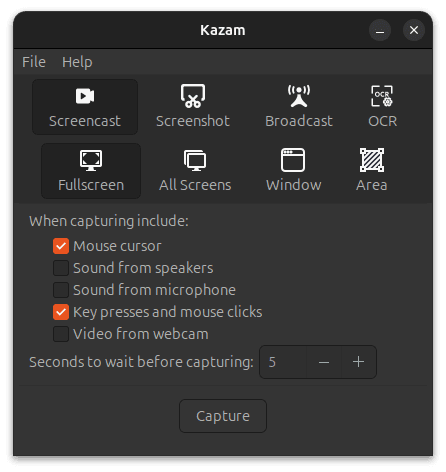
After installation, you can launch Kazam 2 from your applications menu or by typing kazam in the terminal. The new interface includes features for:
- Screen recording (full screen, window, or area selection)
- Screenshot capture
- OCR capabilities for text extraction from screens
- Webcam overlay with drag-and-drop positioning
- Audio settings for system and microphone inputs
- Mouse click visualization: Shows mouse clicks with visual indicators during recording
- Keyboard press capture: Displays keyboard inputs on screen for tutorial creation
- Live broadcasting: Stream directly to Twitch and YouTube
Kazam 2 leverages the xdotool package to detect and visualize user interactions, making it perfect for creating detailed software tutorials where viewers need to see exactly which keys are pressed and where clicks occur.
Keyboard Shortcuts
Kazam 2 provides several keyboard shortcuts to make recording easier:
- SUPER-CTRL-Q - Quit
- SUPER-CTRL-W - Show/Hide main window
- SUPER-CTRL-R - Start Recording
- SUPER-CTRL-F - Finish Recording
Troubleshooting
If you encounter issues with Kazam not detecting your audio inputs:
- Check that PulseAudio is properly configured
- Verify microphone permissions in system settings
- Try running
kazam --debugto see detailed error messages
For better recording quality:
- Choose a smaller framerate (around 3-15 fps) for better performance
- Use earphones to prevent audio feedback when recording commentary
- Consider your disk speed limitations for higher quality recordings
Conclusion
Kazam 2 provides a straightforward, feature-rich screen recording experience for Ubuntu 24.04. Its simple interface combined with powerful features makes it an excellent choice for creating tutorials, demonstrations, capturing gameplay, or even broadcasting to streaming platforms.
Have you tried Kazam 2? Share your experience in the comments below!
Keep reading
- Setup Different Fractional Scaling for Different Screens in Ubuntu
Ubuntu 24.04 cannot run different fractional scaling on a 4K laptop panel and a 2K external monitor. Upgrading to 24.10 and moving NVIDIA to Wayland fixes it.
- Configure integrated GPU for rendering and NVIDIA GPU for CUDA works in Ubuntu 18.04
Set an Intel integrated GPU as the display renderer on Ubuntu 18.04 so your NVIDIA GPU's full VRAM stays free for CUDA and model training.