
Session 01: Web Fundamentals — From URL to Browser
 Viet-Anh Nguyen
Goals for this session
Part 1: Inside a single press of Enter
What really happens when you type a URL?
Try typing https://shopee.vn/product/123 into Chrome. From the moment you hit Enter to the moment the page appears, it takes less than half a second — but at least 5 distinct steps happen along the way.
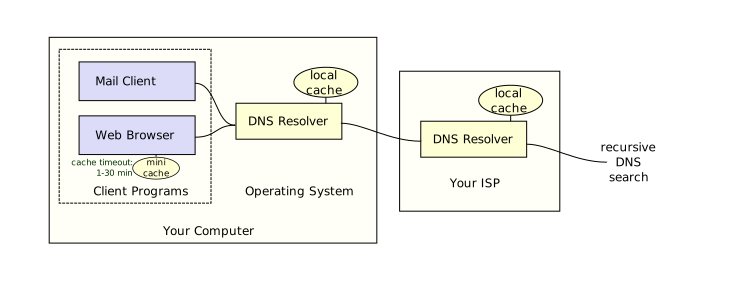
Step 1 — DNS Lookup (resolving the address):
The browser asks the DNS system: "What IP address is shopee.vn?" DNS is like a phone book — you look up a name, it gives you a number. The result: 1.2.3.4.
Step 2 — TCP Connection: Chrome opens a connection to the Shopee server at the address it just resolved. This is the "handshake" step — making sure both ends are ready before talking.
Step 3 — Send the HTTP Request: Chrome sends the request in the proper standard format:
GET /product/123 HTTP/1.1
Host: shopee.vn
Accept: text/html
In plain English: "I want to fetch the product/123 page, send it to me in HTML format."
Step 4 — Server processes: The Shopee server receives the request. It queries the database for product 123's information, then generates an HTML page to return.
Step 5 — Browser renders: Chrome receives the HTML, reads the CSS and JavaScript embedded in the page, downloads everything, and builds the interface you see.
When a page loads slowly or breaks, the problem lives in one of these steps. Knowing this flow helps you ask the right question when a bug happens.
The Client-Server model
Three main characters in every web interaction:
Client is the user's browser — Chrome, Safari, Firefox. It renders the interface and sends requests when the user acts (click, submit a form, load a page). The client holds no real data — it only displays what the server sends down.
Server is the machine that handles logic and data. It receives requests, works with the database, then returns results. The server doesn't care what the interface looks like.
HTTP (HyperText Transfer Protocol) is the protocol that governs how the two sides talk. Its most important trait: it's stateless — every request is fully independent, and the server doesn't automatically remember the previous one. That's why you need a token/cookie to keep a login session alive.

When there's a bug, the first question is always: "Did the error happen on the client or the server?" The answer decides who you ping.
Frontend vs. Backend
Here's the table worth memorizing:
| Question | Frontend | Backend |
|---|---|---|
| Where does it run? | The user's browser | Server (cloud, data center) |
| Language? | HTML, CSS, JavaScript | Python, Java, Go, Node.js, PHP |
| What does it handle? | UI, animation, forms, interaction | Business logic, database, auth, API |
| Common failures? | Broken layout, JS crash, blank page | 500 error, timeout, incorrect data |
| Who to call? | Wrong UI, non-functioning button | Wrong data, login failure, won't load |
Real-world example: The checkout page throws a "Can't place order" error.
- The "Place order" button is greyed out and unclickable → Frontend: the button is disabled
- It clicks but a server error pops up (500, timeout) → Backend: the server failed to process
- The displayed price doesn't match the database → Needs both teams: the data comes from BE but the display is on FE
Part 2: The three layers of the Frontend
What do HTML, CSS, and JavaScript do?
Every web page you see is built from three layers. The key point is that these three layers are completely separate and independent — you can turn each one off to understand what it does.
Take the "Add to cart" button as a concrete example:
HTML — the skeleton (Structure)
HTML is a markup language. It tells the browser: "There's a button here." Nothing more, nothing less.
<button id="add-to-cart">Add to cart</button>
If you turn off CSS and JS, the button still appears — ugly, colorless, no effects — but it exists and is visible.
CSS — the appearance (Style)
CSS controls everything about how it looks: color, size, font, spacing, hover effects, animation.
#add-to-cart {
  background-color: #ee4d2d; /* Shopee's signature orange */
  color: white;
  border-radius: 4px;
  padding: 12px 24px;
  font-size: 16px;
  cursor: pointer;
}
Turn off JavaScript and the button still looks perfectly normal — clicking it just does nothing.
JavaScript — the behavior (Behavior)
JavaScript is a programming language that runs in the browser. It handles interaction, calls APIs, and updates the interface without reloading the page.
document.getElementById('add-to-cart').addEventListener('click', function () {
  // When the user clicks, send a request to the server to add to cart
  fetch('/api/cart', {
    method: 'POST',
    body: JSON.stringify({ productId: 123, quantity: 1 }),
  })
    .then((response) => response.json())
    .then((data) => {
      // Update the count on the cart icon without reloading the page
      document.getElementById('cart-count').textContent = data.totalItems
    })
})
Symptom → cause table — use it when reporting a bug:
| Symptom | Common cause |
|---|---|
| Broken UI, misaligned layout | CSS is broken or conflicting |
| Blank page after loading | JavaScript crashed (check the F12 Console) |
| Page loads but data doesn't show | A JS fetch failed — possibly the backend API |
| Janky, slow animation | Expensive JS re-render or unoptimized CSS animation |
F12 Developer Tools — learn once, use forever
Press F12 on any web page to open Developer Tools. The three tabs you need to know:
1. Console — view JavaScript errors
When a page hits a JS error, the console shows it clearly:
Uncaught TypeError: Cannot read properties of null (reading 'textContent')
    at updateCartCount (app.js:45)
You don't need to understand the code. Screenshot this and send it to a frontend dev — that's already 80% of the information they need to find and fix the bug.
2. Network — see where requests go and what comes back
The Network tab logs every HTTP request from the moment you open it: URL, method (GET/POST), status code, processing time, and response data.
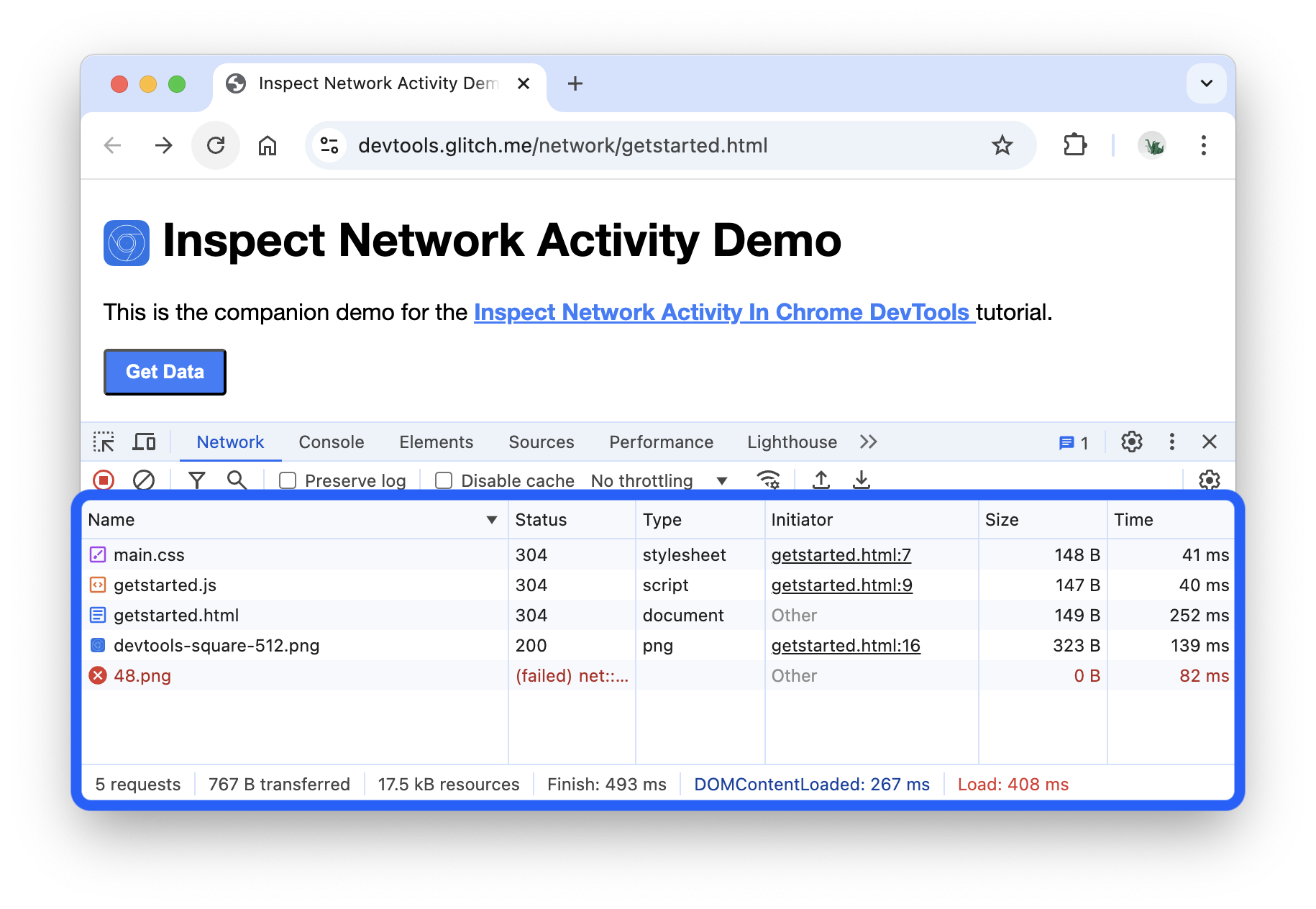
This is how you answer "Was the request even sent?" and "What error did the server return?"
3. Elements — quick text edits without a dev
Double-click any text in the Elements tab, edit it, press Enter. The page updates instantly in your browser.
Use it when you need to demo a mockup for a client before there's a real build. The change only exists in your browser session — reload the page and it's gone.
Part 3: Backend, API, and Database
What is an API?
An API (Application Programming Interface) is the communication contract between two systems. Send the right format, I return the right data. Send the wrong one, I return an error.
A real API call, for example:
GET https://api.shopee.vn/v2/products?category=electronics&limit=20

→ Returns:
{
  "items": [
    { "id": 123, "name": "iPhone 15", "price": 22000000, "stock": 45 }
  ],
  "total": 142,
  "page": 1
}
What PMs should watch for: The stock: 45 field is already in the response. If you want to add a "Show inventory" feature on the product page, you don't need a new API — the frontend just needs to display this field. This is the most common way effort gets mis-estimated when a PM doesn't read the API docs.
Practical tools:
- Swagger / OpenAPI: The standard format for documenting APIs — most tech teams have it
- Postman: Test-call an API without writing code and see the response directly
HTTP Status Codes — the language of the web
Every HTTP response carries a status code. It's how the web tells you what happened.
Quick reference table:
| Code | Meaning | What to do right away |
|---|---|---|
| 200 OK | Success, data returned | Check that the frontend is using the right data |
| 201 Created | Created successfully | Normal |
| 400 Bad Request | The request is missing a field or malformed | Check frontend validation |
| 401 Unauthorized | Not logged in or the token expired | Check the auth flow, ask the user to log in again |
| 403 Forbidden | Logged in but lacks permission | Check access control |
| 404 Not Found | Wrong URL, ID doesn't exist | Check user input or routing |
| 429 Too Many Requests | Called the API too many times | Review the rate limiting policy |
| 500 Internal Server Error | The server crashed — unknown error | Ping a backend dev now, check the logs |
| 503 Service Unavailable | Server overloaded or under maintenance | Ask if there's a deployment or incident |
Part 4: Hands-on — build a web page with Replit AI
Why Replit AI?
Replit is a coding environment that runs right in the browser, no install needed. Its real strength today is the AI Agent feature — you describe what you want in natural language, the AI writes all the HTML, CSS, and JavaScript, then deploys it too.
For a PM, this isn't about learning to become a programmer. The goal is: be able to read the code the AI produces and understand why it looks the way it does.
Go to replit.com → create an account → click "Start with AI".
Step 1 — Describe what you want in plain language
In the Replit AI chat box, enter exactly this:
Build a simple HTML/CSS/JS web page. The page has a heading with my name and a "Calculate 10% VAT" button; when clicked, it asks for the base price and shows the price after tax. Blue theme, modern font, centered on screen.
Press Enter. Replit AI will generate a complete index.html file. Click Run — you have a running web page with a public URL.
Step 2 — Read the code the AI generated
Open the index.html file. You'll see three clear parts:
The HTML part — the page structure:
<h1>Hi, I'm Minh</h1>
<button id="tinh-vat">Calculate 10% VAT</button>
<p id="ket-qua"></p>
This is the backbone. With no CSS or JS, the page still renders — it's just ugly and does nothing.
The CSS part — the appearance:
button {
  background-color: #0077b6;
  color: white;
  padding: 12px 28px;
  border-radius: 6px;
}
The color value #0077b6 is the hex code for blue. A frontend dev needs this exact number — if the design handoff only says "blue," that's not enough.
The JavaScript part — the behavior:
document.getElementById('tinh-vat').addEventListener('click', function () {
  var gia = prompt('Nhập giá gốc:')
  var giaSauVAT = Number(gia) * 1.1
  document.getElementById('ket-qua').textContent =
    'Giá sau VAT: ' + giaSauVAT.toLocaleString('vi-VN') + ' VND'
})
In plain English: "When the button is clicked, ask the user for a number, multiply by 1.1, show the result." This is exactly the programming mindset: event → processing → result.
Step 3 — Make changes by asking the AI
Instead of editing the code by hand, keep asking the AI:
Change the button color to Shopee orange (#ee4d2d). Add an error message if the user enters letters instead of a number.
Watch the AI fix exactly two places: the color value in the CSS and a new if (!isNaN(gia)) condition in the JavaScript. This is how you understand which layer of the code each requested change affects.
Step 4 — Deploy and share
Click Run — Replit deploys automatically. A URL like https://ten-project.yourusername.repl.co is real; send it to anyone and they can open it right away on a phone or computer.
This is the concept of deployment in its simplest form: code pushed up to a server with a public address. Production deployment is more complex (CI/CD, rollback, environment variables), but the essence is the same.
A question to think about: If you change the code and hit Run again, are the users currently visiting that URL affected? The answer is yes — and that's exactly why production deploys need a tightly controlled process.
Further reading
- How Browsers Work — web.dev — A detailed walkthrough of the entire pipeline, from receiving HTML to rendering the screen, by the Chrome team.
- HTTP — MDN Web Docs — The official HTTP reference: methods, status codes, headers.
- What is DNS? — Cloudflare Learning — DNS explained in plain language, with animations.
- Chrome DevTools — Google Developers — The full DevTools guide from the Chrome team: Console, Network, Elements.
- HTTP Status Codes — MDN — A quick reference for the meaning of any status code, with detailed explanations from Mozilla.
Homework
Ship your first app on Replit.
- Share your idea with the group first — briefly describe the app you want to build (name, purpose, 1–2 core features). Get feedback before you code.
- Go to replit.com → create a new Repl → choose the HTML/CSS/JS or Node.js template.
- Build a simple page: it could be a landing page, a form, or anything related to your idea.
- Click Run → get the public URL → share it with the group along with a short note on what you learned building it.
What matters
- 1The web runs on a Client-Server model over HTTP. The client sends a request, the server returns a response — each request is independent.
- 2Frontend (HTML/CSS/JS) runs in the browser. Backend runs on the server. 4xx is a client error, 5xx is a server error.
- 3HTML is structure, CSS is appearance, JavaScript is behavior. The three are completely separate — turn each one off to understand its role.
- 4An API is the communication contract between systems. Being able to read API docs keeps a PM from mis-estimating effort and asking for redundant work.
- 5F12 Developer Tools aren't just for devs. The Console, Network, and Elements tabs are tools a PM needs when reporting a bug and demoing quickly.